
Sensibo Door/Window Sensor Setup Guide
The Sensibo Door/Window Sensor detects when a door or window is open, so your Sensibo can turn off the AC to avoid wasting energy. This guide covers connecting the sensor, mounting it, choosing your AC automation settings, and replacing its battery.
Before you start
- Set up your Sensibo Air or Sensibo Air PRO and make sure it is online in the Sensibo app. The Door/Window Sensor connects to this device using Bluetooth.
- Have the sensor, the smaller magnetic piece, and the sensor’s QR code ready.
- If your sensor has a battery insulating tab, remove it before connecting.
- Connect and test the sensor before attaching it permanently.
1. Add the sensor in the Sensibo app
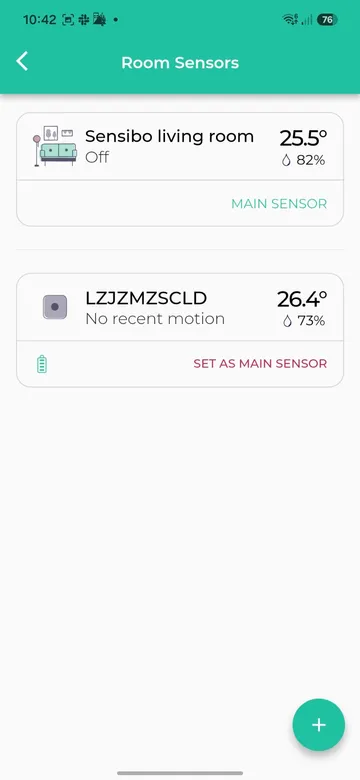
Open Room Sensors
Open the room you want the sensor to control. Open the room’s settings and select Room Sensors, then tap the + button at the bottom right.
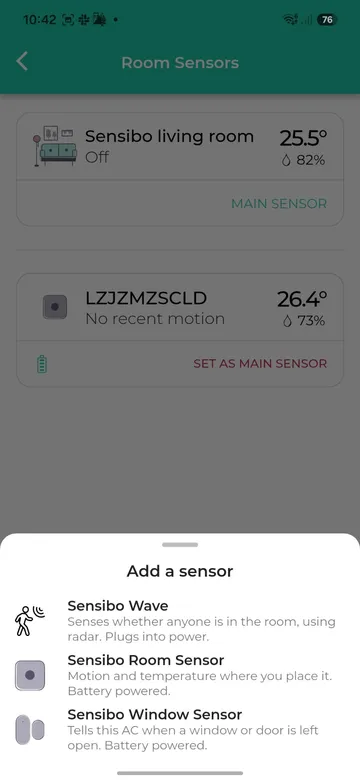
Choose Sensibo Window Sensor
In Add a sensor, select Sensibo Window Sensor. This is the correct option for both doors and windows.
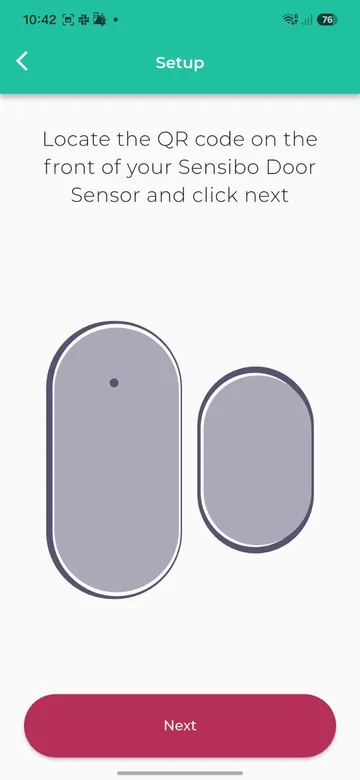
Locate and scan the QR code
- Locate the QR code on the front of your sensor, as prompted by the app, then tap Next.
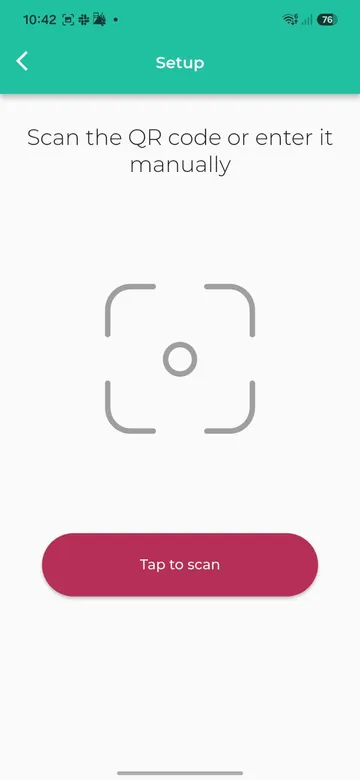
- Tap Tap to scan and scan your sensor’s QR code. You can also enter the code manually using the option offered by the app.
Wait for the connection
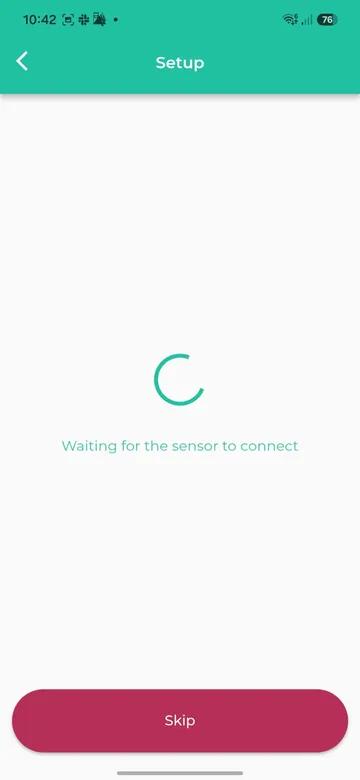
Keep the sensor near your Sensibo Air or Air PRO while the app displays Waiting for the sensor to connect. Wait for it to connect before continuing; tapping Skip does not confirm that the sensor is connected.
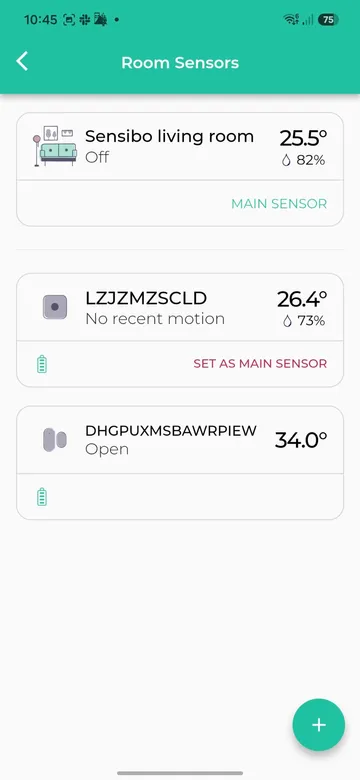
When connected, the sensor appears in Room Sensors. Move the magnet away from the sensor, then bring it back alongside it, and check that the app reports the corresponding open or closed state.
2. Mount the sensor and magnet
- Choose a location within Bluetooth range of your Sensibo Air or Air PRO. Clean and dry both mounting surfaces.
- With the door or window closed, position the larger sensor on the fixed frame and the smaller magnet on the moving door or window.
- Align the two pieces alongside each other, leaving a gap of less than 1 cm when closed. Check that opening the door or window moves the magnet away from the sensor.
- Before securing the adhesive backing, test the open and closed states in the app from this location.
- Attach both pieces using their adhesive backing. Leave access to the sensor’s battery cover for future replacement.
- Open and close the door or window again to confirm that the app updates correctly.
If the state does not change, check the alignment and gap, and test again closer to the Sensibo Air or Air PRO.
3. Adjust automatic AC settings
Open Window Sensor
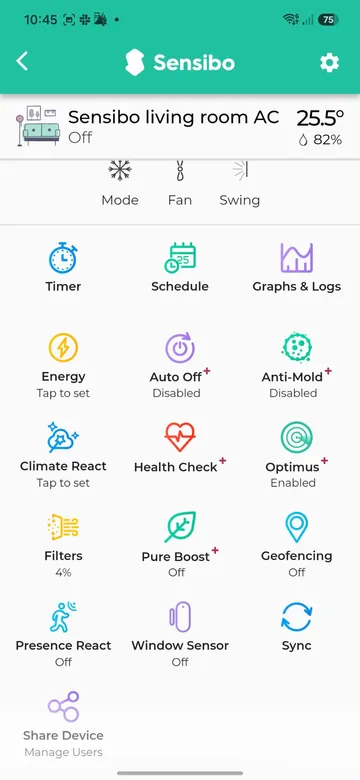
Return to the room’s AC control screen and tap Window Sensor.
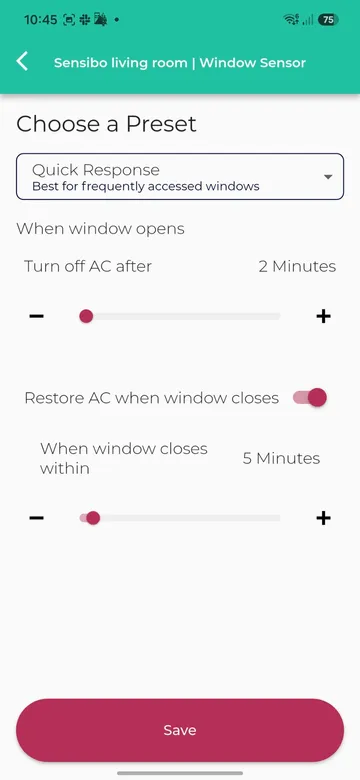
Choose a preset
Tap the dropdown under Choose a Preset and select the option that suits your room:
| Preset | Description in the app |
|---|---|
| Quick Response | Best for frequently accessed windows |
| Balanced | Recommended for most scenarios |
| Energy Saver | Maximum energy savings |
| Custom | Define your own timing |
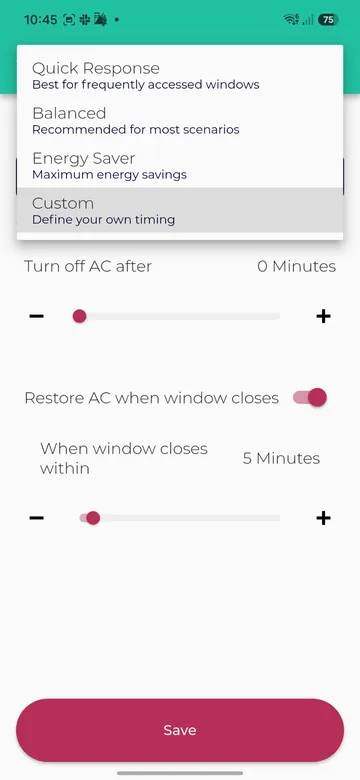
For example, the Quick Response screen shown below sets Turn off AC after to 2 Minutes, with Restore AC when window closes enabled and When window closes within set to 5 Minutes. Review the values displayed in your app before saving.
Set custom timing
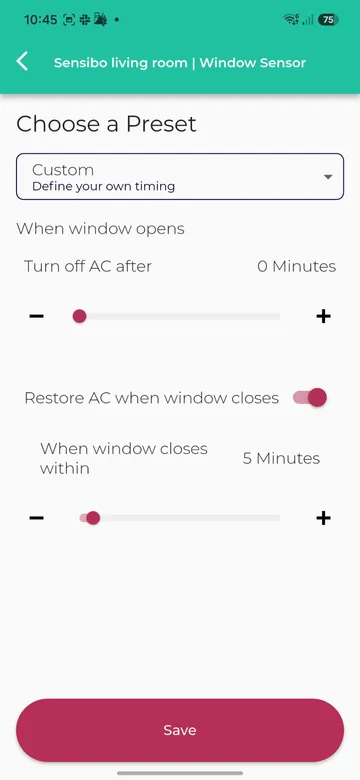
Choose Custom to adjust the controls yourself:
- Turn off AC after: Use the slider or − / + controls to choose how long the door or window can remain open before the AC is turned off.
- Restore AC when window closes: Enable this if you want the automation to restore AC operation when the door or window closes within the configured time window.
- When window closes within: Adjust the time window shown beneath the restore switch. This is the closing window for restoration, rather than a delay after closing.
Tap Save to apply your choices.
Test the automation
With the AC running, open the door or window and leave it open longer than your selected turn-off delay. Confirm that the AC turns off. If restoration is enabled, close the door or window within the configured closing window and check that the AC resumes.
4. Replace the battery
The larger sensor uses one CR2032 coin-cell battery. The smaller magnetic piece does not need a battery.
- Locate the battery cover and the small notch at its edge, shown below.
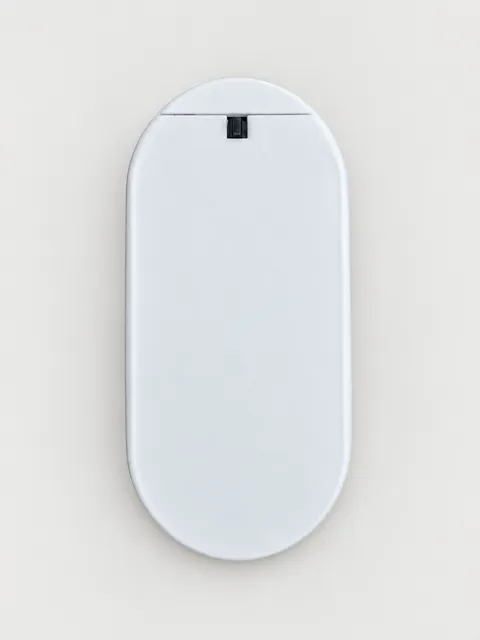
- Press the black release tab, then slide the battery cover down. Avoid forcing the cover or touching the circuit board.
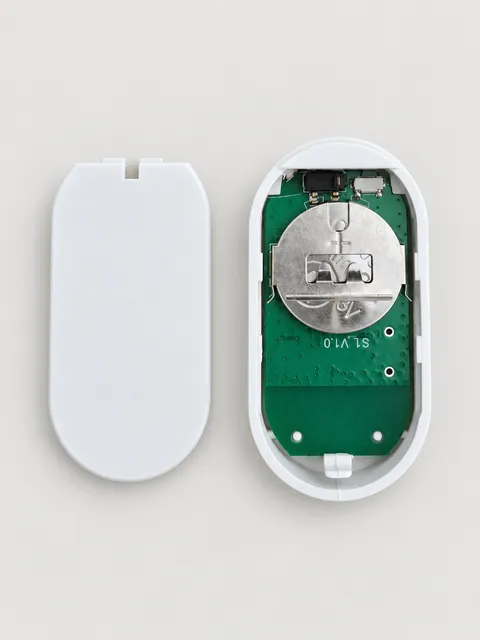
- Note the battery orientation, then carefully slide the old coin cell out of its holder without bending the metal contacts.
- Insert a new CR2032 in the same orientation, with the + side facing outward, as shown in the photo. Make sure it is seated securely under the holder.
- Refit the cover and press gently until it is secured.
- Open and close the door or window and check the sensor status in Room Sensors to confirm that it is working.
Keep new and used coin-cell batteries away from children and dispose of used batteries according to local battery recycling guidance.
Need help?
- The sensor will not connect: Check that your Sensibo Air or Air PRO is online, keep the sensor nearby, and check that its battery is installed and any insulating tab has been removed.
- The sensor always reports open: Check that the magnet is aligned alongside the sensor with a gap of less than 1 cm when the door or window is closed.
- The AC does not turn off: Check that the sensor status changes in the app, save your Window Sensor settings, and allow the selected turn-off delay to pass.
- The AC does not restore: Check that Restore AC when window closes is enabled and that the door or window was closed within the configured closing window.
See the Sensibo Door/Window Sensor overview for compatibility and specifications, or contact Sensibo Support for help.