
Sensibo Remote Control Setup Guide

Setting Up Remote Control
Ensure the remote control is set to 0000.
- Press and hold the “SET” button and the “ON/OFF” button at the same time until the model’s code flashes on the display window.
- Use the temperature UP and DOWN buttons to adjust the numbers to 0000.
- Confirm by pressing the “SET” button. If the number increases, use the “TEMP” button to navigate back to 0000 and press set.
Set the time on the Sensibo Remote
- Press SET and MODE at the same time.
- When the hour digits blink, use the temperature up (+) and temperature down (−) buttons to select the correct hour. Press SET to confirm.
- Use the temperature up (+) and temperature down (−) buttons to select the correct minutes. Press SET to confirm.
Assign the remotes to the Sensibo devices
- Access the Airbend dashboard using your provided email and password at https://home.sensibo.com
- Navigate to the list of devices.
- Select the devices for which you want to assign to the Sensibo Remote Controls
- Click on the remote icon (Set Sensibo Remote)

- A small remote icon will appear next to the assigned devices

Limit and restrict the Sensibo Remote
Use the Policies tab in the Sensibo Airbend dashboard to control how guests can use the Sensibo Remote. You can set a minimum cooling temperature, set a maximum heating temperature, and prevent changes to the AC mode.
Set remote restrictions
- Open the Sensibo Airbend dashboard, go to Policies, and click New Policy.
- Select Sensibo Remote in the policy menu.
- Optional: Turn on Enable Temperature Limits, then set:
- Minimum cooling temperature: The lowest temperature guests can select when cooling.
- Maximum heating temperature: The highest temperature guests can select when heating.
- Optional: To prevent guests from switching between AC modes, turn on Block Mode Change under Mode Change Restrictions.
- Click Save Changes to apply the policy.
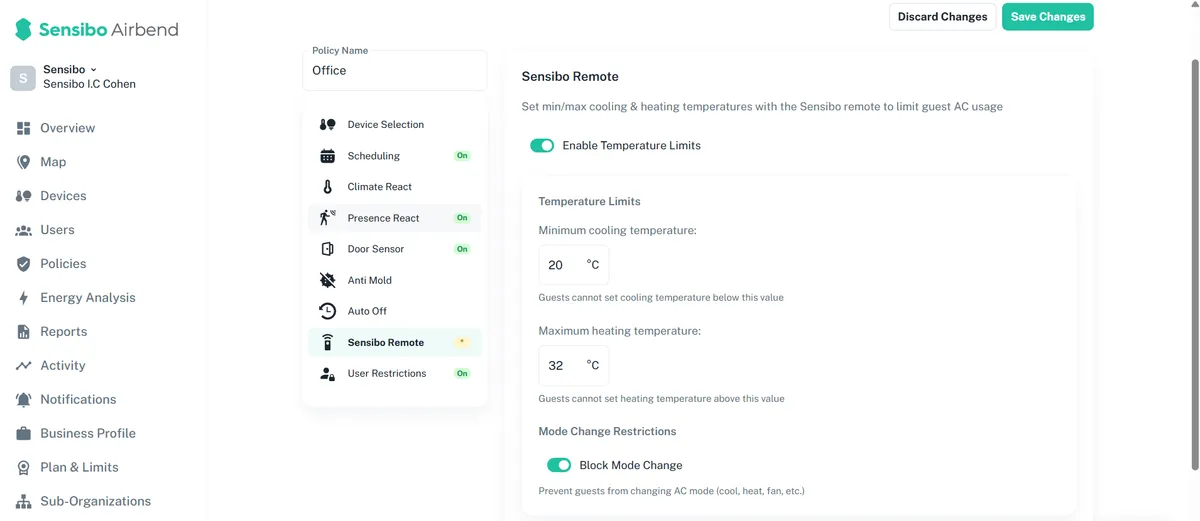
OPTIONAL Arrows point to the optional settings: enable temperature limits, set cooling and heating temperatures, and block mode changes.
Example: The screenshot shows a minimum cooling temperature of 20°C, a maximum heating temperature of 32°C, and Block Mode Change enabled. Choose the temperature limits that suit your space; the values shown are examples.