Turn your air conditioner on or off at a chosen time, either once or on selected days each week.
Teal outlines mark the controls to tap. Screenshots show example settings.
1. Open Schedule
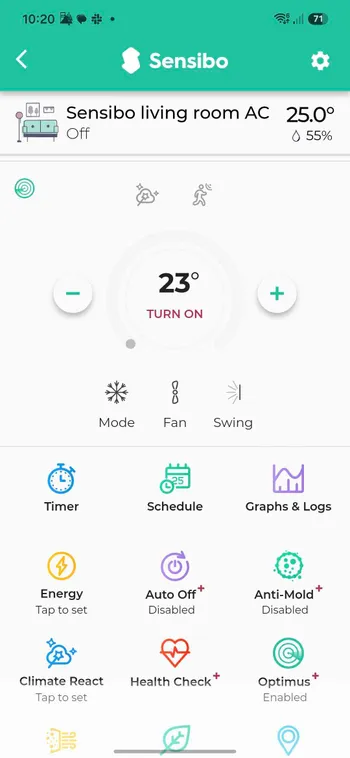
Open your room in the Sensibo app and tap Schedule.
Tap Schedule on the room control screen.
2. Create a new schedule
Open a new schedule from the Schedule screen.
3. Name it, set the time, and choose days
Tap Name (optional) to name your schedule.
Tap the time next to Run at and choose when it should run.
Under Repeat on, tap the days you want. Tap a selected day again to deselect it.
Tap the name field, time, and weekday buttons. Monday and Thursday are selected in this example.
4. Choose On or Off
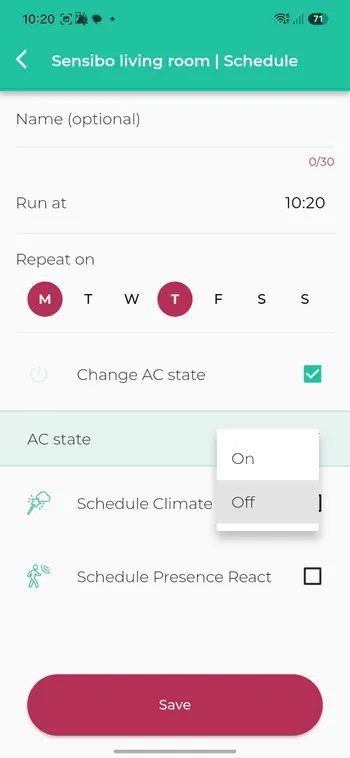
Make sure Change AC state is checked. Tap AC state, then choose On to turn the AC on, or Off to turn it off at the scheduled time.
Check Change AC state, tap AC state, then choose On or Off.
5. Choose your AC settings
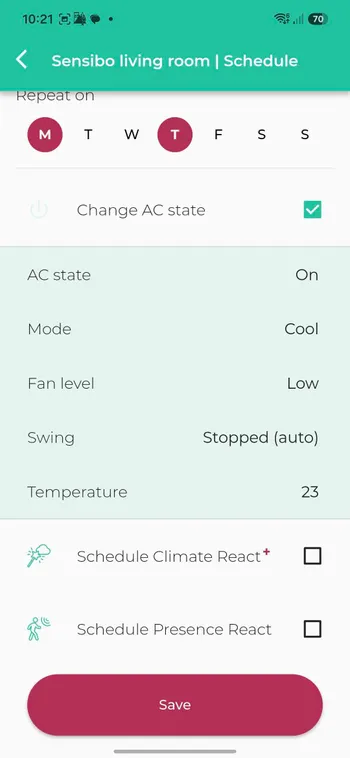
If you choose On, tap the values next to Mode, Fan level, Swing, and Temperature to adjust them. Choose the value you want in each menu.
If you choose Off, continue to Save.
Tap each marked value to adjust the settings for your On schedule.
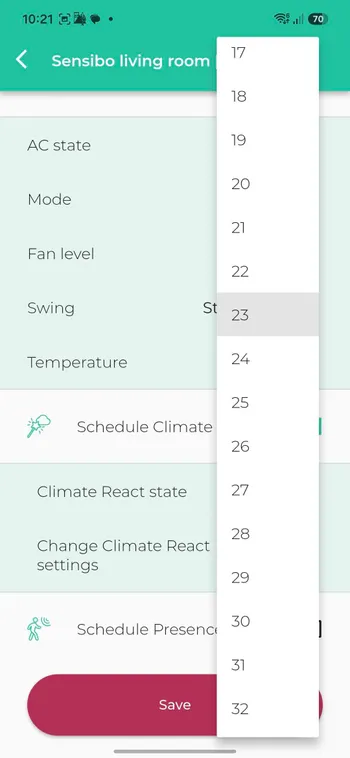
Temperature
Tap Temperature, then select your target temperature. The marked 23 is an example.
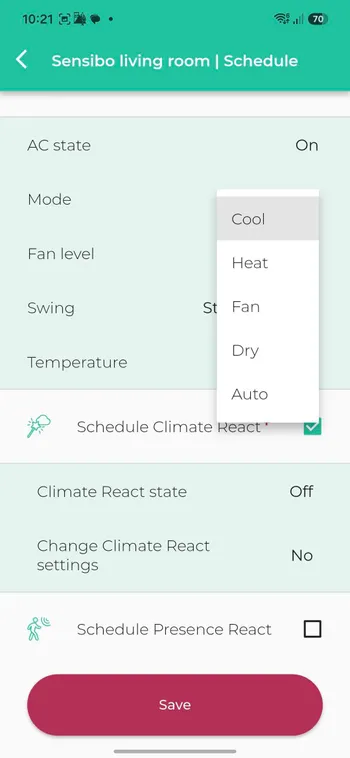
Mode
Tap a mode: Cool, Heat, Fan, Dry, or Auto.
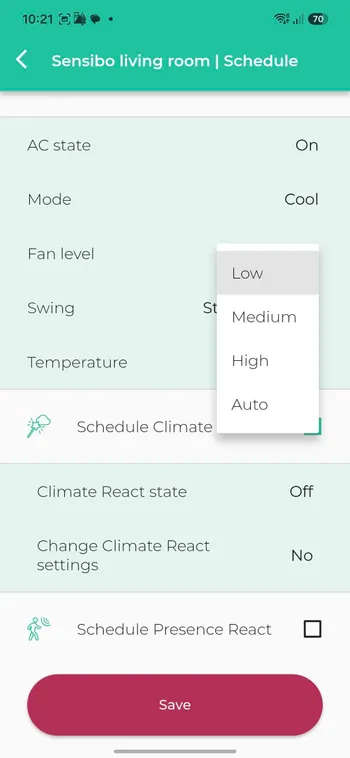
Fan level
Tap a fan level: Low, Medium, High, or Auto.
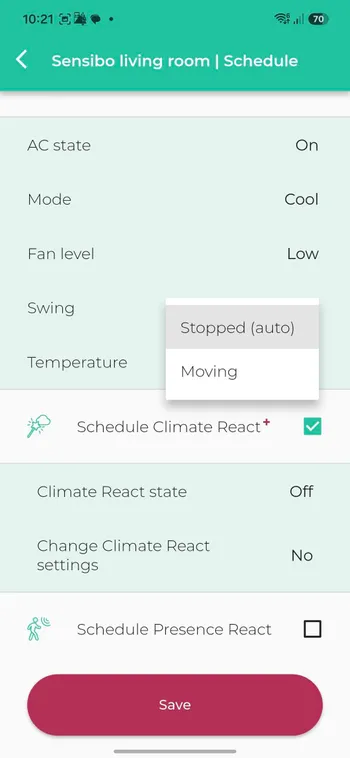
Swing
Tap Stopped (auto) or Moving.
6. Save your schedule
Review the time, days, and AC state, then tap Save.
Tap Save at the bottom of the editor.
7. Create separate On and Off schedules
If you want the AC to turn on and off automatically, create two separate schedules: one with AC state → On and another with AC state → Off. Choose the time and days for each, and save each one.
8. Climate React and Presence React
You can also schedule Climate React and Presence React. These optional features will be explained in separate guides.
Leave them unchecked when creating a basic AC On/Off schedule.
Optional features for later guides: Schedule Climate React and Schedule Presence React.